
Testing two devices is needed whenever you lose connectivity between both devices on your network.
To perform the test you will need:
Equipment Requirements
2 Net485 Devices
Power adapters (included on every purchase)
2 ATC 820 serial to USB adapter
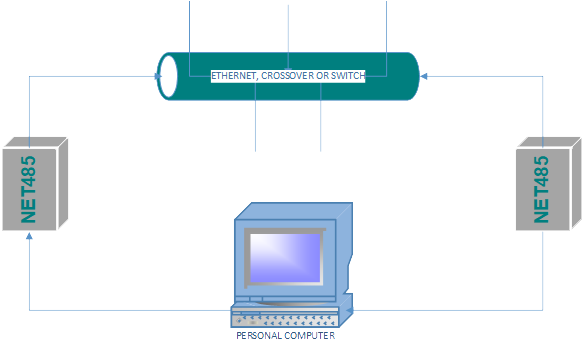
Ethernet Crossover Cable or Ethernet Switch *Steps may vary*
System Requirements
Windows OS
DeviceInstaller
Tera Term or any other terminal emulation software
Start by installing the proper software such as DeviceInstaller, and Tera Term.
Downloads
| DeviceInstaller | Lantronix(Website) |
| Tera Term | TeraTerm Download Site |
First step, if you cannot see the device under Lantronix Devices, make sure you are using the proper network adapter.
In this case, you can see Wi-Fi being selected, we need to change that in order to test the device via Ethernet.
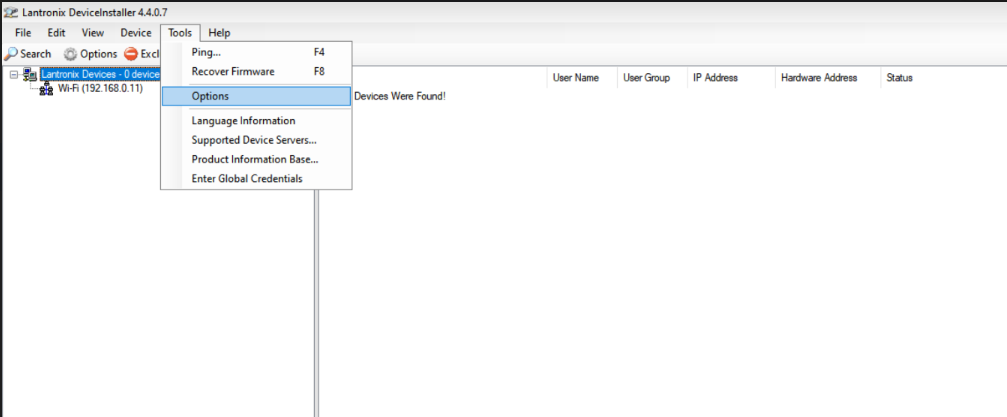
Click on Tools then select Options
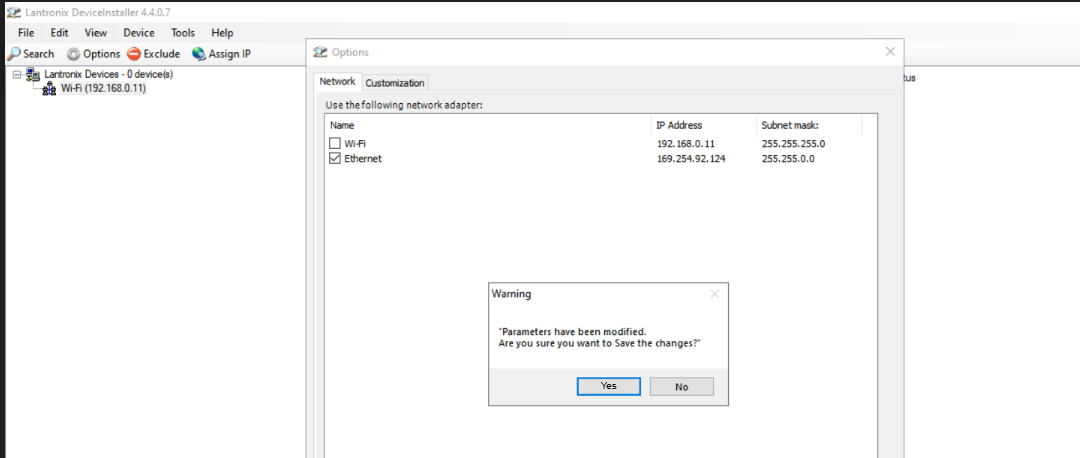
On the options window, select Ethernet, then save changes.
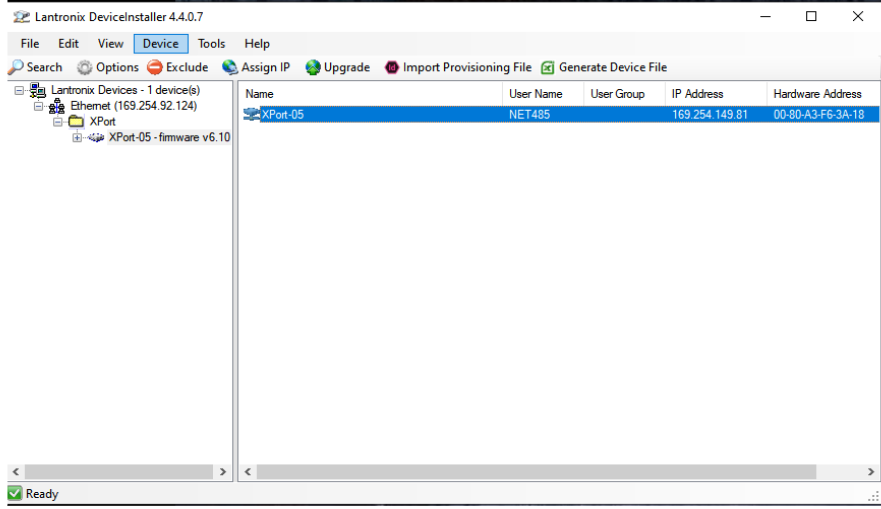
Afterward, ethernet will be detected as an XPort Device if done correctly.
If the device is still not found within DeviceInstaller, please follow the steps in this article.
Server setup
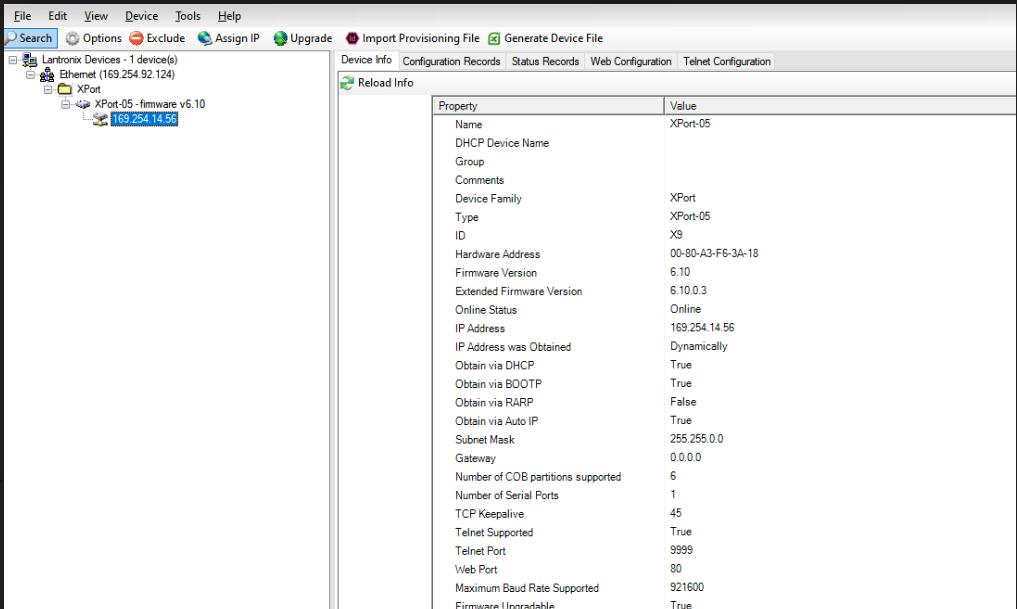
Once the device is detected on DeviceInstaller it will show the device’s IP address.
Take note of the IP address that is shown, as we will need the servers IP address when setting up the client.
Once you double click on XPort you will be shown 5 tabs on the right of the IP Address, landing on Device Info continue by clicking Web Configuration.
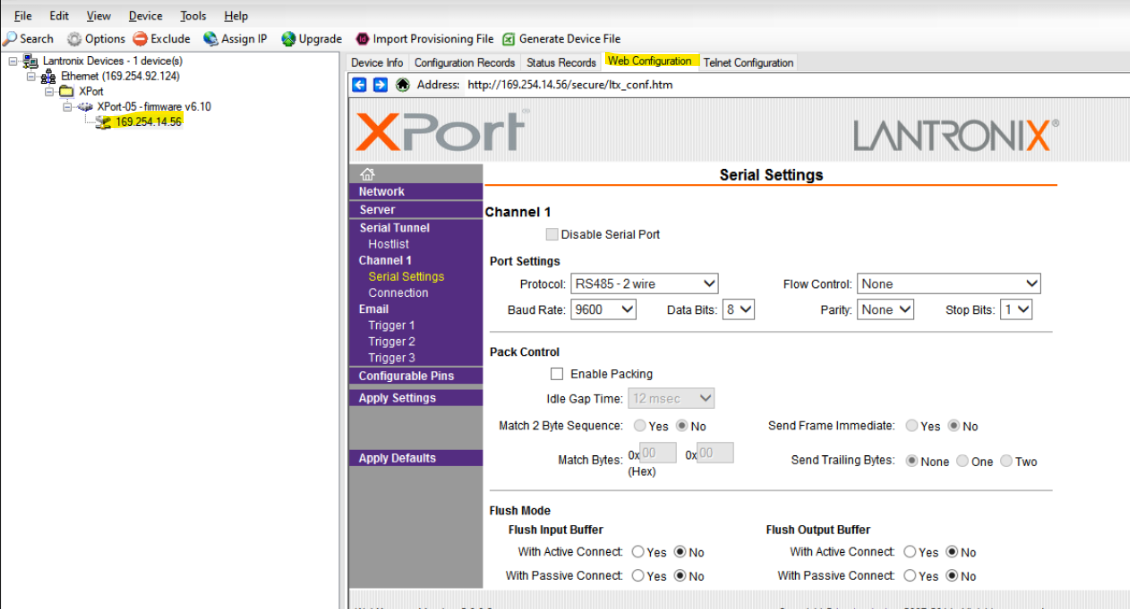
We will select Channel1>Serial settings, within the window make sure to select the RS485 protocol.
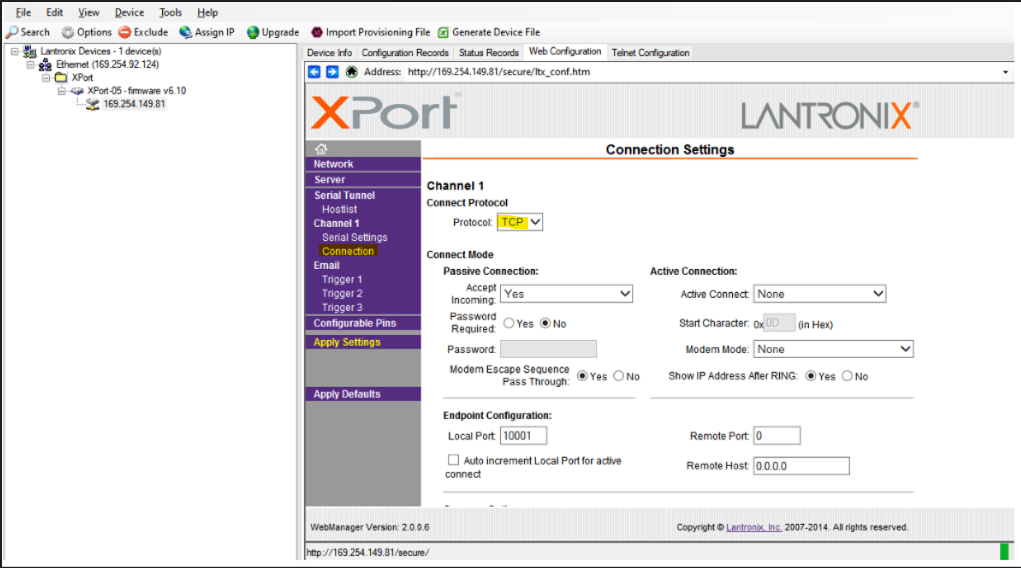
Afterward, you will select the connection option on the left column, the TCP protocol needs to be enabled no more changes need to be made click on the Ok button.
To save changes, scroll to the bottom of each page and select OK, then to save the changes you click on Apply Settings on the menu bar.
Client Device Setup
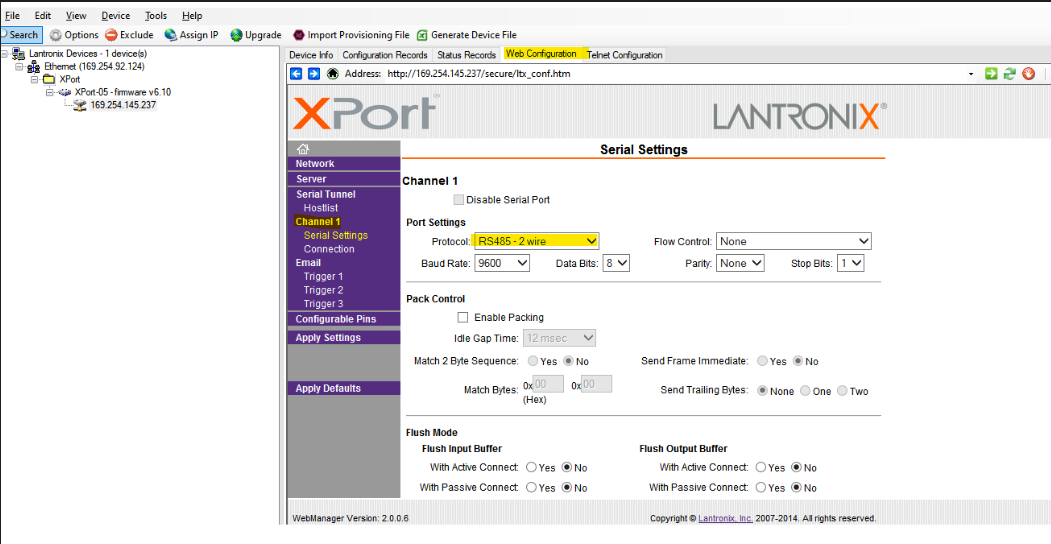
You will be able to access the Net485 device setup by opening Web configuration in the Lantronix DeviceInstaller, then Channel 1 > Serial Settings, making sure to select Net485 protocol.
Go to Channel 1 >Connection, then Accept Incoming needs to be enabled or on (Yes) mode and Active Connection needs to be under "Auto Start".
Endpoint configuration under local port 10001 and on Remote Host we will use the Server IP address to create the connection. Save changes by clicking on OK and Apply Settings to finish.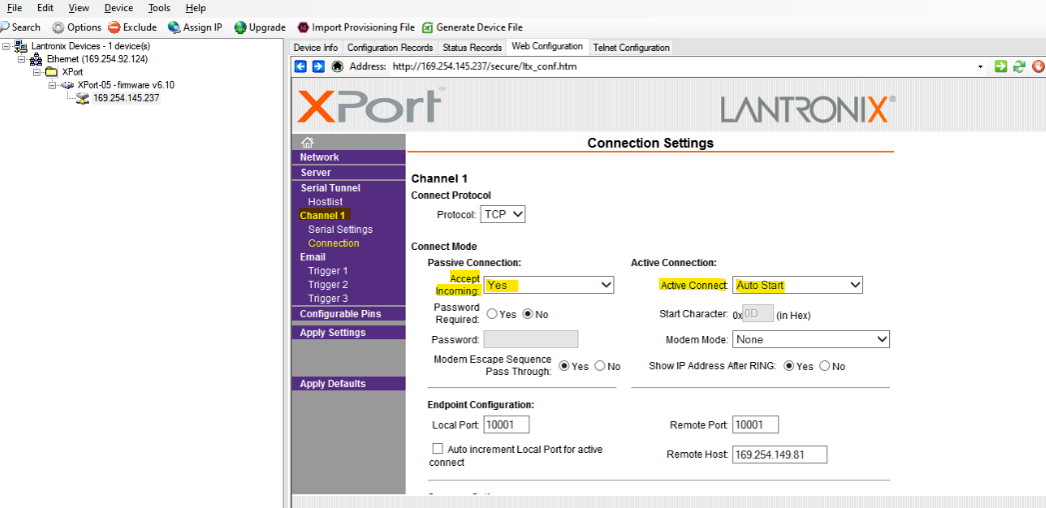
This ends the setup process for testing.
Communications test
We will continue the communications test with Tera Term (or any other terminal emulator of choice)
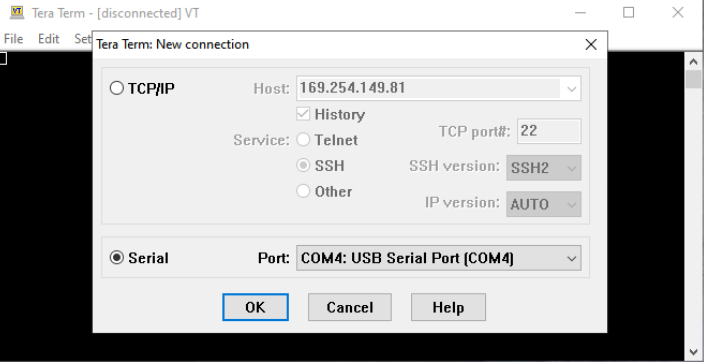
On a Tera Term window, open up a new connection and select the first available COM Port with a USB Serial Port.
Open a second Tera Term window and proceed to select the other available COM Port with a USB Serial Port.
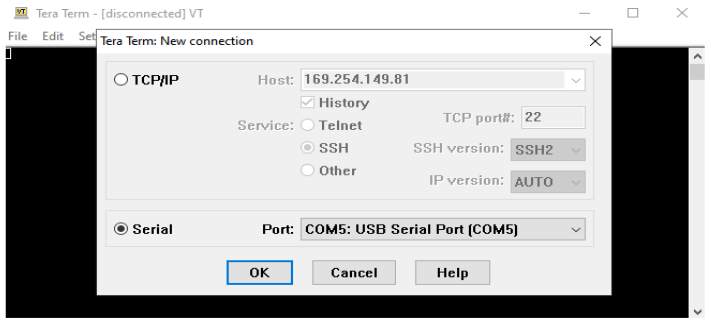
COM Port number will vary with every windows installation.
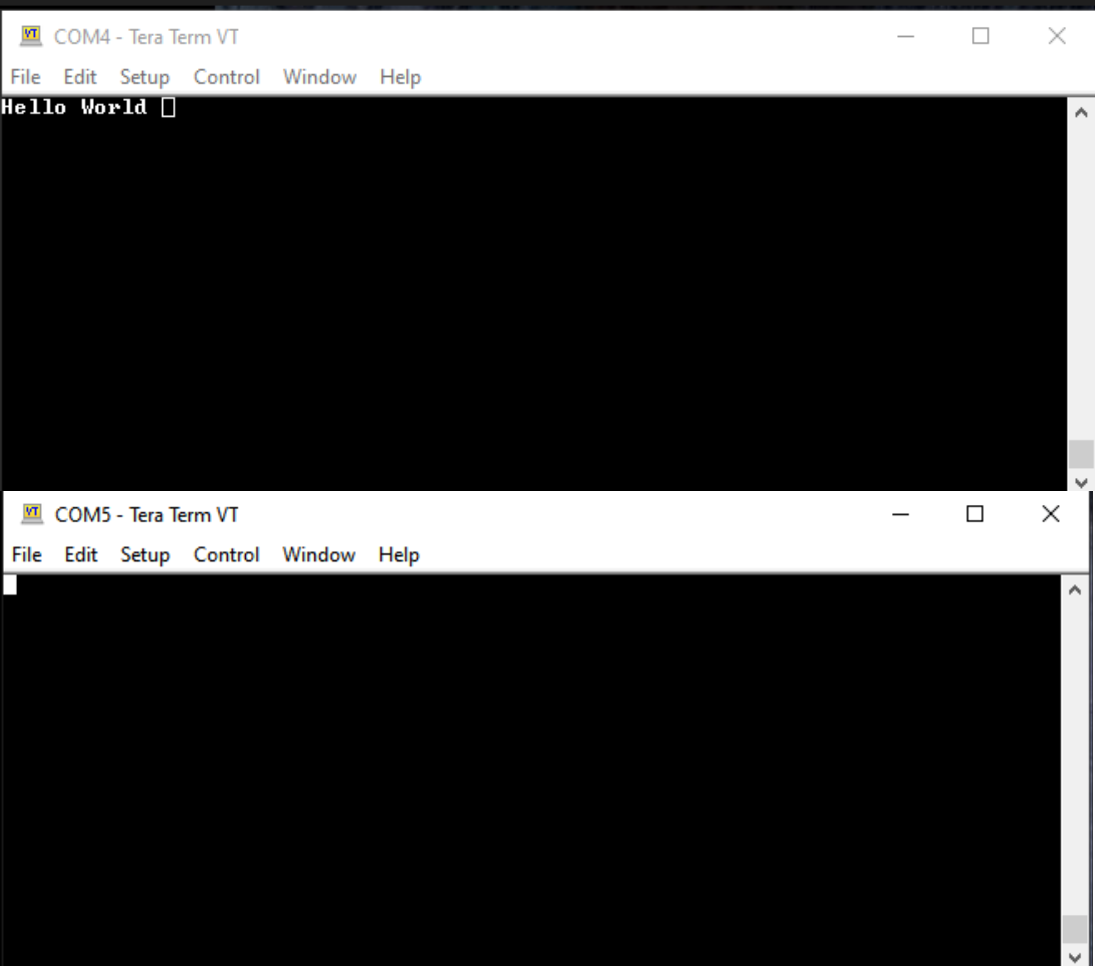
Once you are able to connect to each port, you should be able to type on one window while the characters should show up on the other window.
Comments
0 comments
Please sign in to leave a comment.